This article will summarize the development of Add-Ins for Outlook. Use the basic template using Yeoman and Yeoman Generator. Development environment OS: Windows 11 .Net version: 8.0 Development tool: Visual Studio Code Node.js version: 18.20.4 Yeoman version: 5.0.0 Development language: React, Typescript
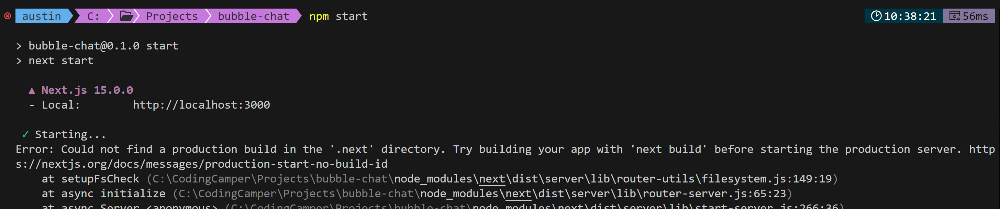
[NextJS] Error: Could not find a production build in the '.next' directory. Try building your app with 'next build' before starting the production server
- Get link
- X
- Other Apps
■ ISSUE
I created a new project with the npx create-next-app@latest command and ran npm start, but an error occurred.

■ Solution
The issue was resolved by following the steps below. The error message itself is a message telling you to run it after building.
\> npm run build\> npm start
- Get link
- X
- Other Apps
Popular posts from this blog
Setting up Windows Powershell with Oh-My-Posh
You can install Oh My Posh to change Windows Powershell into your own unique UI. First, visit the Oh My Posh homepage. You can check the installation method and available themes on the website. Install Oh My Posh. 1. Execute the following command in Windows Powershell \> winget install JanDeDobbeleer.OhMyPosh -s winget 2. Setting Windows PATH environment variable. When you install Oh My Posh, it will be installed in C:\Users\{user}\AppData\Local\Programs\oh-my-posh. You must register the location in Windows PATH. If it is properly registered in PATH, the oh-my-posh.exe command will be executed. 3. Open the Powershell basic profile. \> notepad.ext $profile If the profile is registered properly, it opens as shown below. If the profile cannot be found, the error screen below opens. In this case, register the profile with the command below. \> New-Item -type file -path $profile -force If registered properly, the ...
[NETSDK1136] the target platform must be set to windows
■ Issue How to resolve the error message below when building by creating a project based on .Net 8.0 and adding the <UseWindowsForms>true</UseWindowsForms> property to the project file (.csproj). error NETSDK1136: The target platform must be set to Windows (usually by including '-windows' in the TargetFramework property) when using Windows Forms or WPF, or referencing projects or packages that do so. ■ Solution Among the properties of the project file (.csproj) < TargetFramework > net8.0 </ TargetFramework > Add -windows to TargetFramework property < TargetFramework > net8.0-windows </ TargetFramework >
Comments
Post a Comment